
The party has discovered a relic, named it after a breakfast food, and asked whether it can roll damage. Splendid. Moonvault 1.54 has arrived with sharper prep tools for exactly this sort of table weather.
Since our last field report, the biggest changes are:
- Sessions got more table-ready: calendar invites, Next Session Briefing, Live Session Quick Capture, and a calmer Running Session dashboard help you move from prep to play without opening six side quests in your own notes.
- Calendars learned the sky: Pro calendars can track moons, seasons, and current campaign-date context in the Calendar workspace and Running Session.
- Pages became easier to keep tidy: stable page chrome, page type conversion, and remembered sidebar order make the vault behave more like a tool belt and less like a drawer full of haunted spoons.
- Items, Abilities, and Templates grew teeth: Items and Abilities are now first-class pages with roll actions, and Template Studio can manage vault-local templates and mark one as the default for each page type.
For this tutorial, we built A Field Guide to Moonvault 1.54, a fresh demo vault about The Ember Clock: a bell tower, a brass relic, a suspicious reflection, and a party that should absolutely know better by now.
Quest 1: Make your favorite template the default
Open the Templates section in the sidebar, choose a reusable template, and mark it as the default for its page type. You can do this from the template header, template context menu, command palette, or the create-page template picker.
In our demo vault, Relic Field Card is the default Item template. That means the next time we create an Item, Moonvault preselects the relic structure instead of making us choose it again. This is especially useful for repeated prep shapes: session checklists, NPC profiles, monster writeups, relic cards, shop goods, spell notes, and other little goblin forms that multiply after midnight.
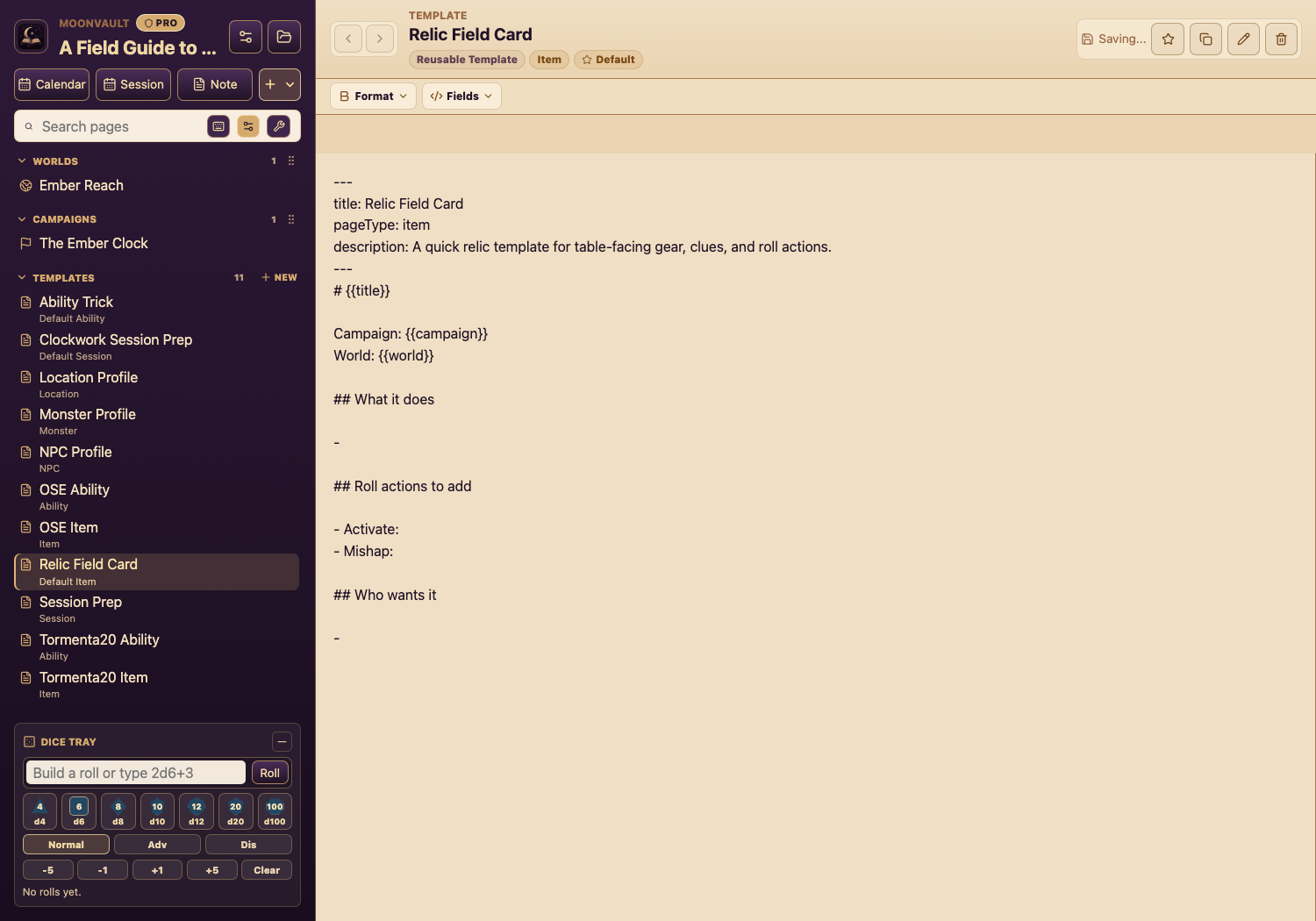
Templates remain plain Markdown in the vault, and template application is a Moonvault Pro workflow. The useful bit is that your preferred structure now follows the page type instead of relying on your memory, which is already busy remembering what the suspicious statue said.
Quest 2: Turn Items and Abilities into table tools
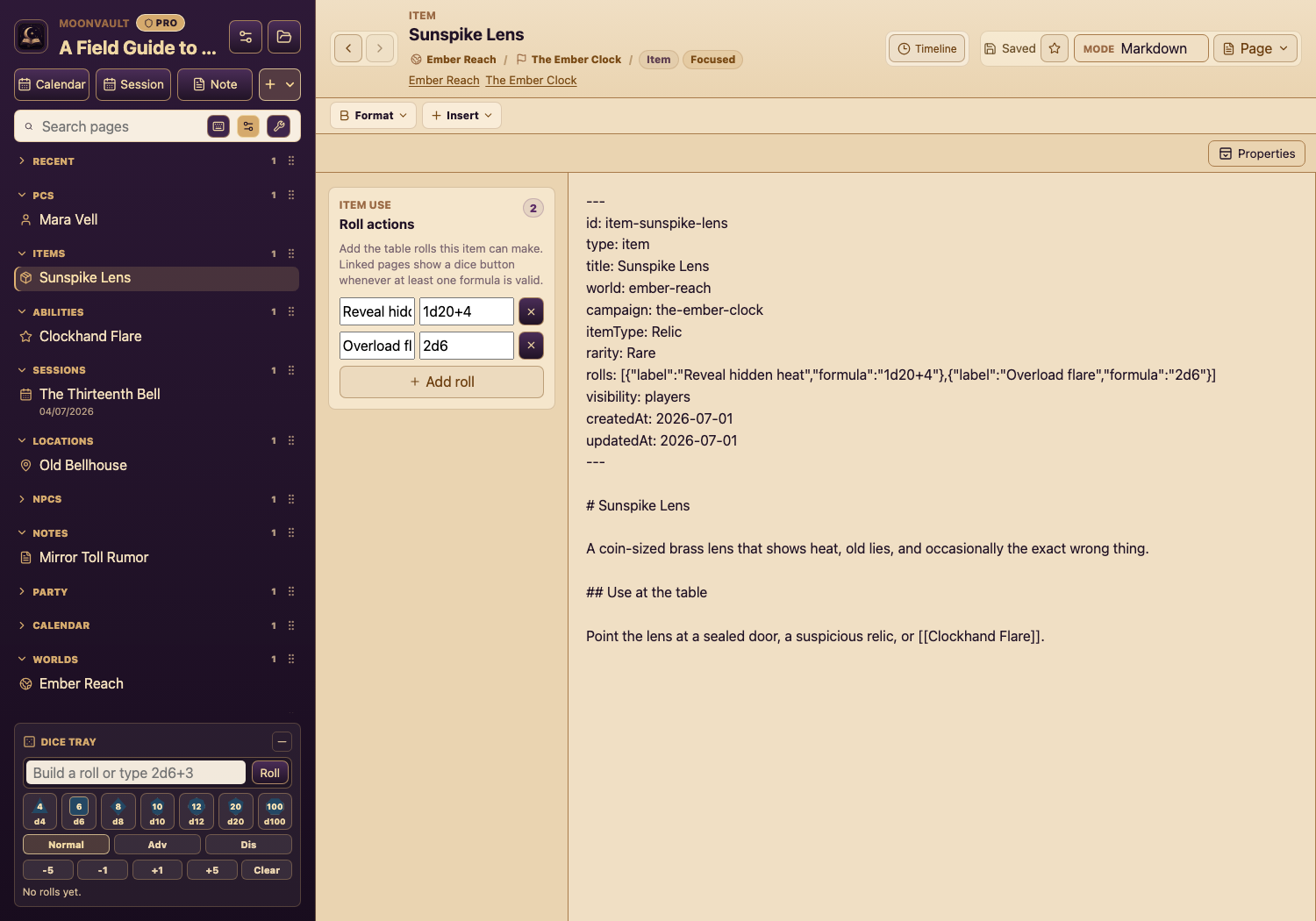
Create an Item or Ability page for anything the table may use: gear, treasure, powers, spells, maneuvers, rituals, techniques, or class features. Then add one or more Roll actions in the side panel.
Our Sunspike Lens has two rolls:
- Reveal hidden heat:
1d20+4 - Overload flare:
2d6
Now any normal wikilink to [[Sunspike Lens]] can show a dice-use button when the target has valid rolls. The Markdown stays clean, but the table gets a fast way to use the thing without hunting through another page.
Use this for magic weapons, healing salves, monster tricks, faction powers, spell-circle variants, or the one cursed bell clapper your players will insist on weaponizing.
Quest 3: Promote rough notes into the right page type
Sometimes a page starts life as a messy Note. Then the players point at it, ask three questions, and suddenly it is a Location, NPC, Lore page, Item, or Monster. Open Page → Convert page type or use Cmd/Ctrl+K → Convert page type.
Moonvault shows a preview before changing anything:
- Where the file will move.
- Which target fields will be added.
- Which fields will be preserved.
- A reminder that the Markdown body stays intact.
In The Ember Clock, Mirror Toll Rumor begins as a loose Note. If the party chases it into a recurring mystery, we can convert it into Lore or a Location without copying text by hand.
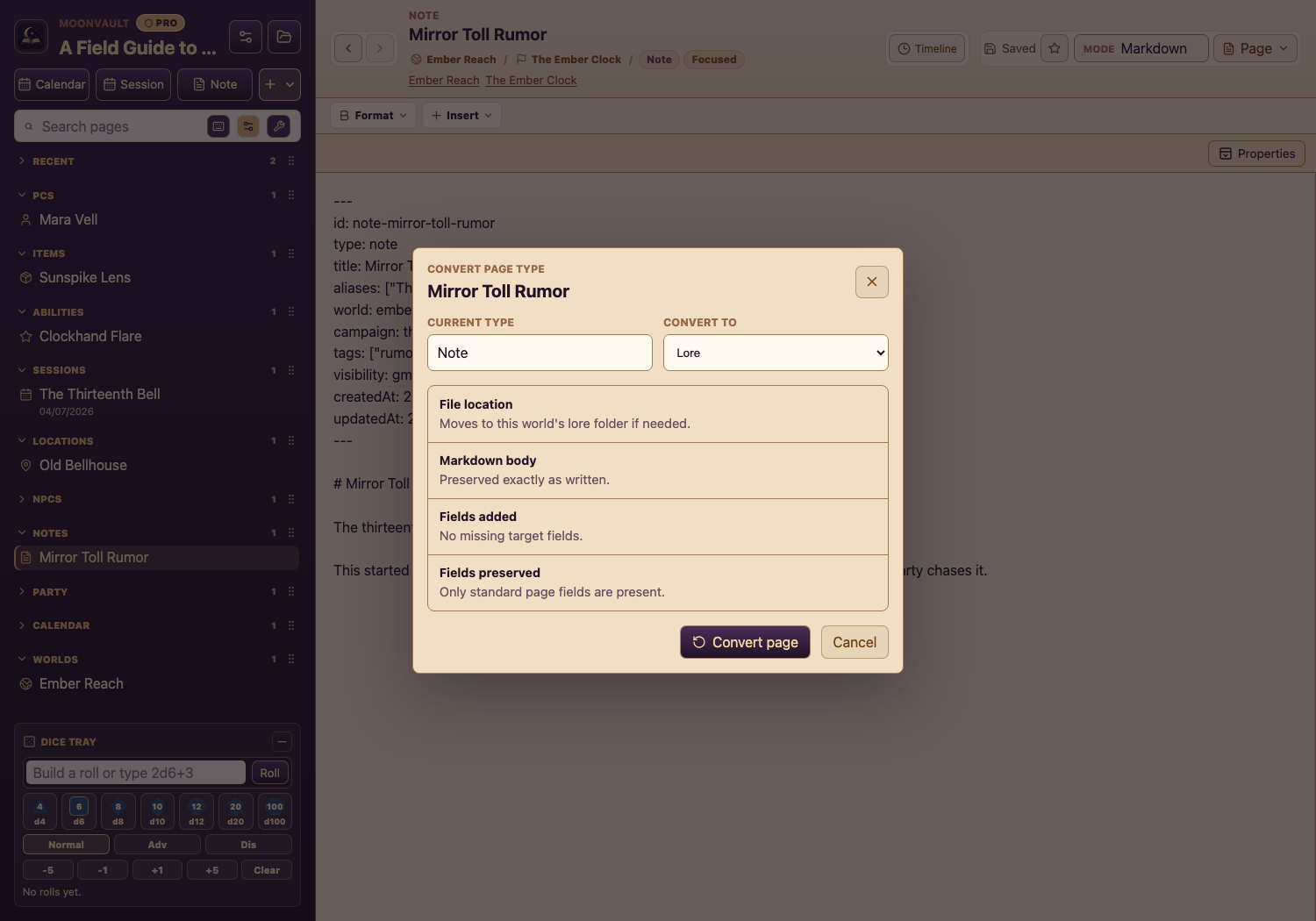
This is the feature for honest prep evolution. Start small, then promote the page when the table proves it deserves a proper lair.
Quest 4: Put the sidebar in battle order
Drag page-section headers in the sidebar to match how you run. If PCs and Items matter tonight, move them up. If Locations or Sessions matter tomorrow, move those up. Moonvault remembers the order per vault, and it also remembers collapsed sections, including Recent, Pinned, page-type groups, and Templates.
In the screenshot above, the demo vault keeps PCs, Items, Abilities, and Sessions high in the list because tonight is about a relic, a ritual, and one very bad bell. Another table might put Locations and Factions first. The vault should follow the campaign’s current danger, not a universal theory of sidebar civilization.
Bonus trail: sessions and calendars got sharper too
If your next game is on the calendar, open a Session and try the newer flow:
- Add player emails to PC sheets when you want Google Calendar or
.icsinvites. - Open Briefing from the Session page to review the previous recap, prep tasks, party state, linked encounters, and missing pieces.
- Use Run session for a compact play view with rendered notes, date context, prep status, and the current session’s most useful details.
- During play, use Live Session Quick Capture from the sidebar, command palette, Active Session Mode, or
/captureto save decisions, clues, loot, rulings, and follow-up tasks.
For Pro calendar users, campaign calendars can now show moon phases and seasons, and Running Session can carry that context beside the free current in-world date. This is how you tell the party the Brass Moon is waning without pretending you calculated it on a napkin. The napkin remains available for dramatic effect.
Pack the 1.54 kit
Before the next session:
- Mark one high-use page template as a default.
- Create an Item or Ability with at least one Roll action.
- Convert one old Note into the page type it clearly became during play.
- Drag your sidebar sections into the order tonight’s prep actually needs.
- Open your next Session’s Briefing and capture one follow-up task before the dice begin their nonsense.
Moonvault 1.54 is less about one giant dragon and more about many sharp knives in the GM’s belt: defaults, rolls, conversion, order, and live-session handoffs.
Now return to the Ember Clock. It is almost thirteen, and the bell has started asking for initiative.